Scenario 1: Goods Receipt PO printed from SAP Business One
In this step-by-step manual, we will manually configure the application to print Goods Receipt PO from SAP Business One. Additionally, we want to save the prints to PDF.
Printer settings
Only the Crystal printer type allows to save to PDF. Therefore, we will use this option in this scenario.
We will use the following printer configuration:
- Printer Code: test1
- Printer Type: Crystal
- Printer Name: test1
- Localization: CT
With the following parameters, define
- SaveAsPdf: True
- PhysicalName: Send to OneNote 16 (one of the printer's names available on this test server)
- MaxCapacity: 75.
Label Template
We have to create a Label Template to which settings will be assigned and which itself will be assigned to a specific printer.
A Label Template used in this scenario:
| TEMPLATE CODE | TEMPLATE NAME | TEMPLATE DESCRIPTION |
|---|---|---|
| GRPO | GRPO | GRPO |
Printing Rules
- Requester: SAP
- Transaction: Goods Receipt PO
- Employee/User/ItemGroup/Warehouse: All
- Unit of Measurement – not checked
- Header – not checked
- Template: GRPO
Label Report
Crystal Report
Crystal report used in this scenario:
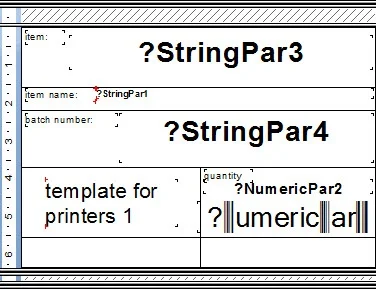
In Crystal Reports, different variables are used, e.g., StringPar, and NumericPar. It is possible to attach to each of its specific data in the next step: mapping.
CompuTec Labels localization
Crystal reports used by CompuTec Labels have to be located in the following locations:
C:\ProgramData\CompuTec\CT Label Printing\Reports\
(or the corresponding installation directory if the default one was not chosen).
Mapping
Next, we must define mapping parameters: what data is assigned to a specific variable from a label layout.
Mapping rules used in this scenario:
| Name | Type | Value |
|---|---|---|
| StringPar3 | Parameter | Item Code (Item Code) |
| StringPar1 | Parameter | ItemName (ItemName) |
| StringPar4 | Sql | SELECT @DistNumber FROM DUMMY |
Event Triggers
The next thing is to define what action printing will occur.
Event Triggers set up used in this scenario:
| Employee | Employee Department | Object Type | SAP | PDC | WMS | PF |
|---|---|---|---|---|---|---|
| All | All | Goods Receipt PO | OnChange | NoAction | NoAction | NoAction |
Data Update
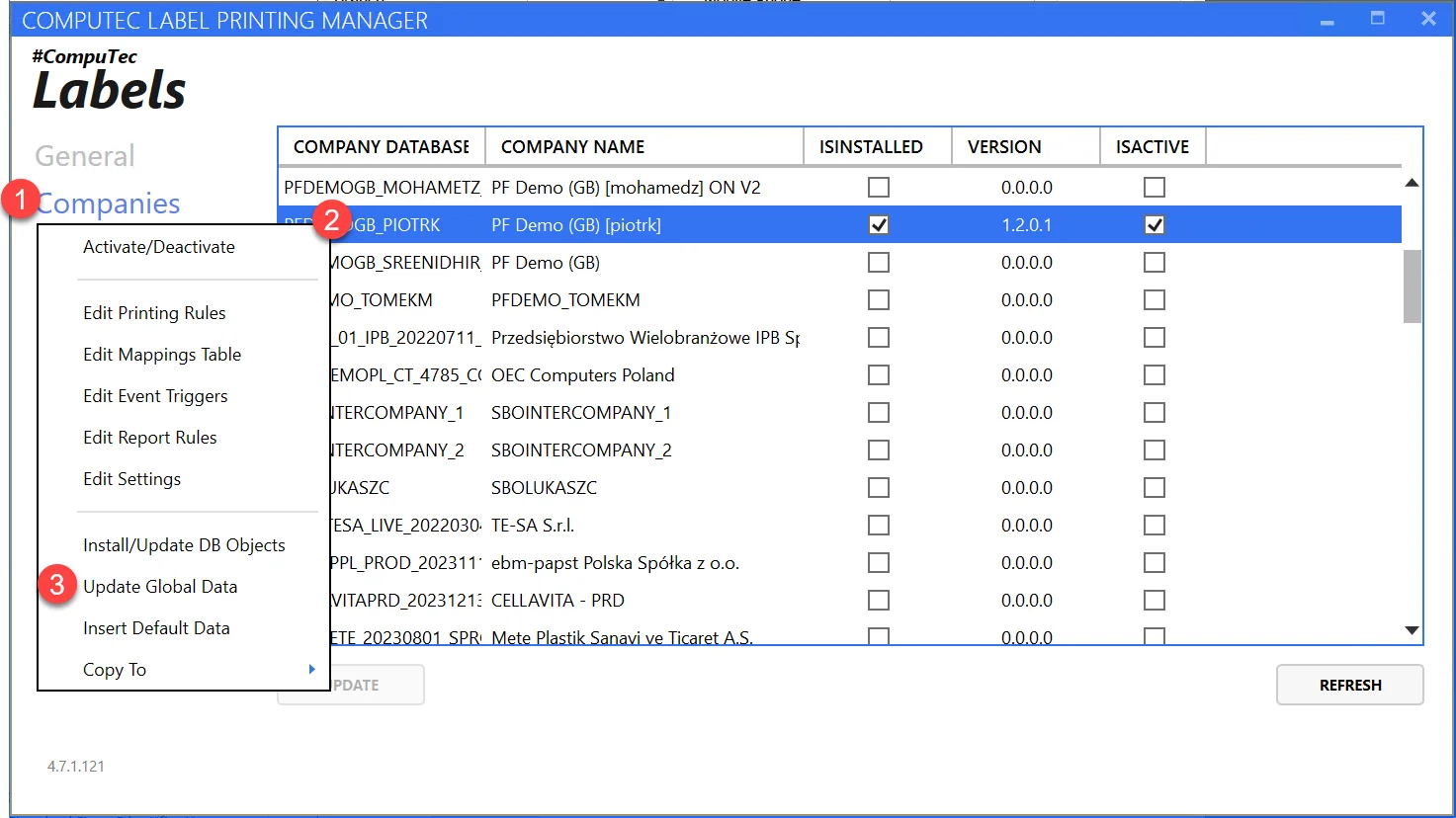
After setting up all the settings, go to Companies and choose Update Global Data option:
Template assigning
Next, we have to assign the template, GRPO, in this case, to a specific printer and choose the following:
| INFO | NAME | TEMPLATE CODE | PRINTER CODE | FILE |
|---|---|---|---|---|
| OK | GRPOtest1 | GRPO | test1 | C:\Program Files (x86)\CompuTec\CompuTec LabelPrinting\Reports\LabelPrintingAyCrystalLayout.rpt |
Printing
We defined the printing trigger as OnChange, which means that, in our case, a printing occurs on an updating a Goods Receipt PO document.
We can also print a label manually at any time. To do this in SAP B1, go to the upper menu > File > Print Labels. Choose Crystal printer from a drop-down list and click Print.
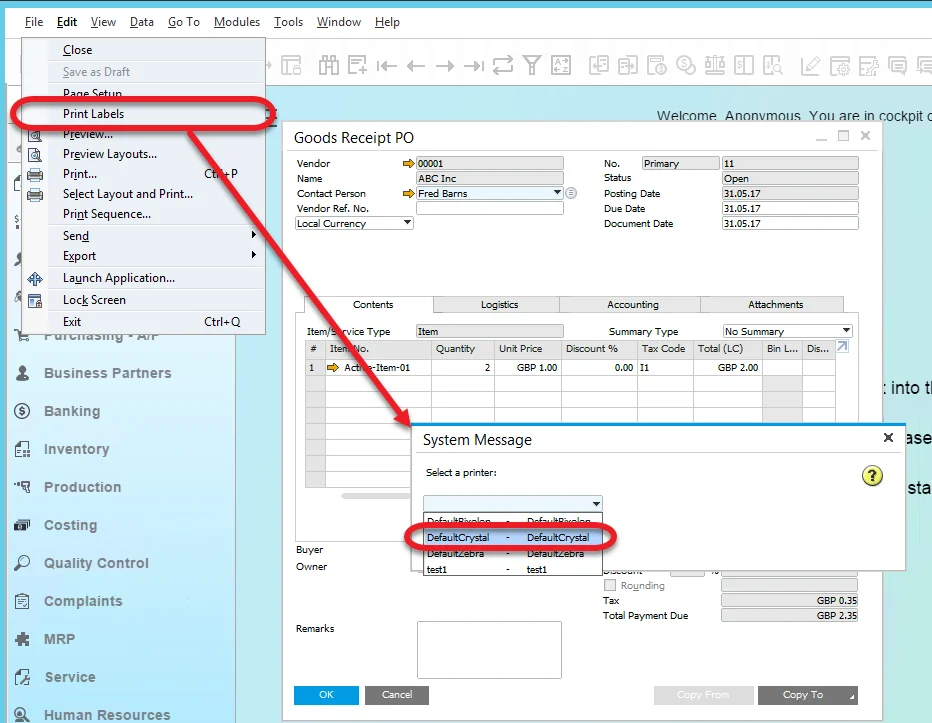
A system message will appear:

A label is printed and saved as a PDF file in the default location: Local Disk (C:)\ProgramData\CompuTec\CT Label Printing\Reports\Crystal:
